
Extended Reality (XR) in this Course
This course uses Extended Reality (XR) technologies to create an interactive experience for learners. Any course that includes XR is designed to ensure that interactive experiences complement course activities. They are not required for course completion. Please find specific device use instructions and answers to Frequently Asked Questions below.
Privacy Notice
Participating in XR experiences may subject learners to additional personal data collection and processing by third-party device, software, or service providers. Depending on the experience and equipment used, information pertaining to a user’s location, surroundings (e.g., dimensions of objects in a room when creating a boundary) and various biometric data such as eye tracking, bodily motion, and voice can be captured and processed. By participating in these experiences, you consent to the collection of additional personal information, including biometric data, when applicable. Such data collection is often necessary for XR tools to function, but the manner in which companies store and use personal information is subject to their unique terms of service and privacy policies.
While any personal information associated with these experiences collected by the University of Michigan will be subject to our Privacy Policy, please note that the University of Michigan has no control over third party policies. We therefore recommend learners review end user agreements and privacy policies published by third parties referenced in course descriptions of these experiences to ensure comfort before participating.
Device Instructions (Augmented Reality)
You may have the opportunity to interact with an augmented reality (AR) experience using the webAR tool 8th Wall in your course. You can access the experience through most mobile devices. Take stock of your immediate environment and try to find a physical space that is not overly noisy, and if necessary, a space that is free of obstructions. If you feel uncomfortable or encounter loading errors, you may quit the experience at any time.
Access the experience:
If you are accessing your course on Coursera using your computer browser, scan the QR code with a mobile device to launch the experience.
If you are accessing your course on Coursera using a mobile device, click the link to launch the experience.
Please note: These experiences are accessible on most smartphones and tablets. Some limitations include access to a mobile device, battery life, and device heating issues. In the event that it does not operate well on your device, the same material is available to you through other course content.
Device Instructions (Uptale)
You may have the opportunity to interact with a 360° learning experience using Uptale, an eLearning tool, in your course. You can access the experience through your computer browser, mobile device, or a virtual reality (VR) headset. Take stock of your immediate environment and try to find a physical space that is not overly noisy, and if necessary, a space that is free of obstructions. If you feel uncomfortable or encounter loading errors, you may quit the experience at any time.
If you are accessing your course on Coursera using your computer browser, select the device you’d like to use to view instructions:
If you are accessing your course on Coursera using your mobile phone, select the device you’d like to use to view instructions:
Frequently Asked Questions (Augmented Reality)
The experience will not load on my device! What should I do if the page is stuck on a loading screen with an "infinite spinner" while trying to access the experience?
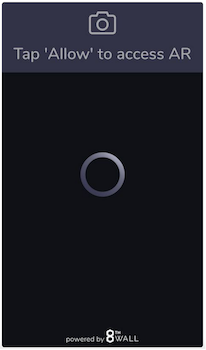
An infinite spinner typically indicates that the AR scene and assets are still loading, or that the browser is waiting for required permissions. Here are some steps you can take to troubleshoot the issue:
Slow Internet Connection:
Solution: If you're in an area with slow Wi-Fi or cellular service, the AR experience may take longer to load. Try switching to another network, using a hotspot if available, moving to a location with better network reception, or trying out the experience on a different device.
Browser Permissions:
Solution: Ensure you’ve granted the necessary permissions for the browser to access your camera and microphone. These permissions are crucial for AR functionality. If you're not prompted to enable permissions, manually check your browser's settings:
On your phone, navigate to Settings > Apps or Application Manager > Your Browser and verify camera and microphone permissions are enabled.
Camera locked to a background tab:
Solution: Some devices and browsers restrict camera access if it’s already in use by another tab. Close any other tabs or applications that might be using the camera, then refresh the page.
Why does my device’s battery drain quickly when using the AR experience?
AR experiences can utilize significant battery due to demands on the camera and processor. We recommend charging the device before beginning the experience or keeping it plugged in.
What should I do if there is no or little sound?
We recommend turning up the audio volume on your device or using headphones if available. If this is unsuccessful, it is possible that sound is temporarily not supported on your device due to updates.
I am having a hard time seeing the experience, as my object appears far away or is too big or small. How do I change the object’s location and/or size?
If the object appears too far away, you can resize the object or move the anchor closer to you.
To resize the object, use a pinching gesture on the screen—pinch inward to reduce its size and outward to increase it.
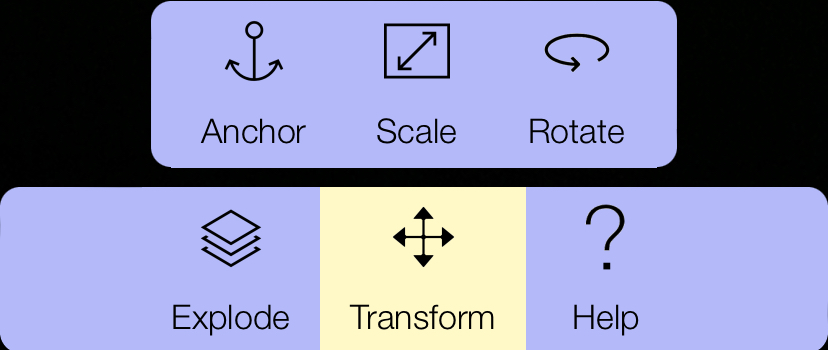
To move the anchor, locate the middle 'transform' button on the app bar, then select the 'anchor' function on the top left to reposition the object. Aim your phone at a nearby flat surface such as a table or the floor.
If resizing and repositioning isn't feasible, refresh the browser. Progress will be lost.
I am in the experience, but I am stuck…
Some of the interactive pieces require you to take certain actions to proceed in the experience. Reopen the instructions by clicking the help button and follow the next step to progress.

If you have completed the step and the scene is still not progressing, you may be experiencing a loading error and should try restarting the experience by refreshing the browser.
How can I restart the experience?
To restart an experience, refresh the page on your mobile device.
Frequently Asked Questions (Uptale)
The experience will not load on my device! What should I do?
It is common for loading errors to occur due to poor WiFi or internet connections. We recommend switching to another network, using a hotspot if available, or trying out the experience on a different device. If the loading error occurs on your mobile device we recommend trying the experience on the mobile application rather than the mobile browser.
What should I do if there is no or little sound?
We recommend turning up the audio volume on your device or using headphones if available. If this is unsuccessful, we recommend restarting the experience or trying a different device.
Am I able to zoom in? I am having a hard time seeing the experience.
Uptale does not currently support zoom functionality. On mobile devices, you can rotate your device from landscape to portrait mode for a closer view of the experience. If you are unable to see the experience, we recommend trying a different device or switching to the alternative activity within the course.
I am in the experience, but I am stuck and cannot move forward.
Some of the interactive pieces require you to click on them to proceed in the experience. If you think you are stuck, click on all of the tags in the environment to progress. If no tags or audio cues are present, you may be experiencing a loading error and should try restarting the experience.
How can I restart the experience?
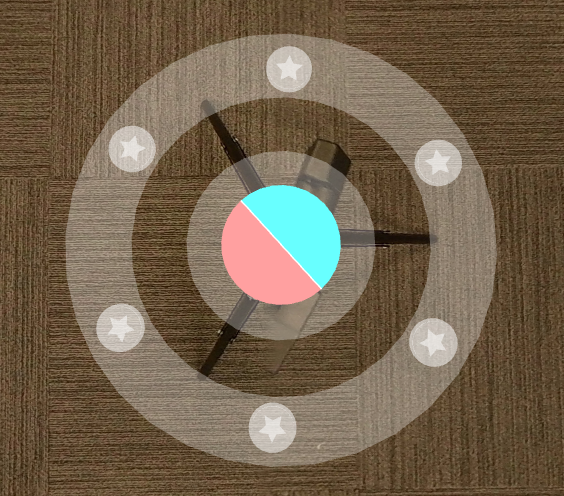
To restart an experience, look for a blue and red circle located below you on the ground. Click this button twice to confirm and restart the experience from the beginning, creating a new session.
My screen froze during the experience. What should I do?
If your screen freezes, restart the experience if possible. If this does not fix the issue, choose a different loading speed by restarting the experience on Desktop, clicking the “More Options” drop down underneath “Launch on this Device,” and selecting the option, “Launch after preloading all scenes.”