Frequently Asked Questions about Augmented Reality
What do I do if the infinite spinner appears on my screen?
An infinite spinner typically indicates that the AR scene and assets are still loading, or that the browser is waiting for required permissions. Here are some steps you can take to troubleshoot the issue:
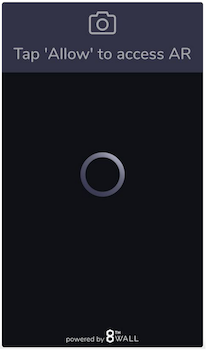
- Slow Internet Connection: If you're in an area with slow Wi-Fi or cellular service, the AR experience may take longer to load. Try switching to another network, using a hotspot if available, moving to a location with better network reception, or trying out the experience on a different device.
- Browser Permissions: Ensure you’ve granted the necessary permissions for the browser to access your camera and microphone. These permissions are crucial for AR functionality. If you're not prompted to enable permissions, manually check your browser's settings:
- On your phone, navigate to Settings > Apps or Application Manager > Your Browser and verify camera and microphone permissions are enabled.
- Camera locked to a background tab: Some devices and browsers restrict camera access if it’s already in use by another tab. Close any other tabs or applications that might be using the camera, then refresh the page.
What should I do if there is no or little sound?
We recommend turning up the audio volume on your device or using headphones if available. If this is unsuccessful, it is possible that sound is temporarily not supported on your device due to updates.
I am having a hard time seeing the experience, as my object appears far away or is too big or small. How do I change the object’s location and/or size?
If the object appears too far away, you can resize the object or move the anchor closer to you.
To resize the object, use a pinching gesture on the screen—pinch inward to reduce its size and outward to increase it.
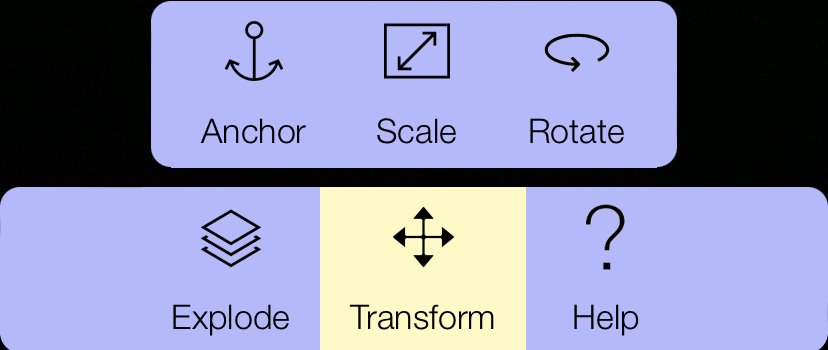
To move the anchor, locate the middle 'transform' button on the app bar, then select the 'anchor' function on the top left to reposition the object. Aim your phone at a nearby flat surface such as a table or the floor.
The experience will not load on my device! What should I do if the page is stuck on a loading screen with an "infinite spinner" while trying to access the experience?
If resizing and repositioning isn't feasible, refresh the browser. Progress will be lost.
I am in the experience, but I am stuck…
Some of the interactive pieces require you to take certain actions to proceed in the experience. Reopen the instructions by clicking the help button and follow the next step to progress.
If you have completed the step and the scene is still not progressing, you may be experiencing a loading error and should try restarting the experience by refreshing the browser.
How can I restart the experience?
To restart an experience, refresh the page on your mobile device.